
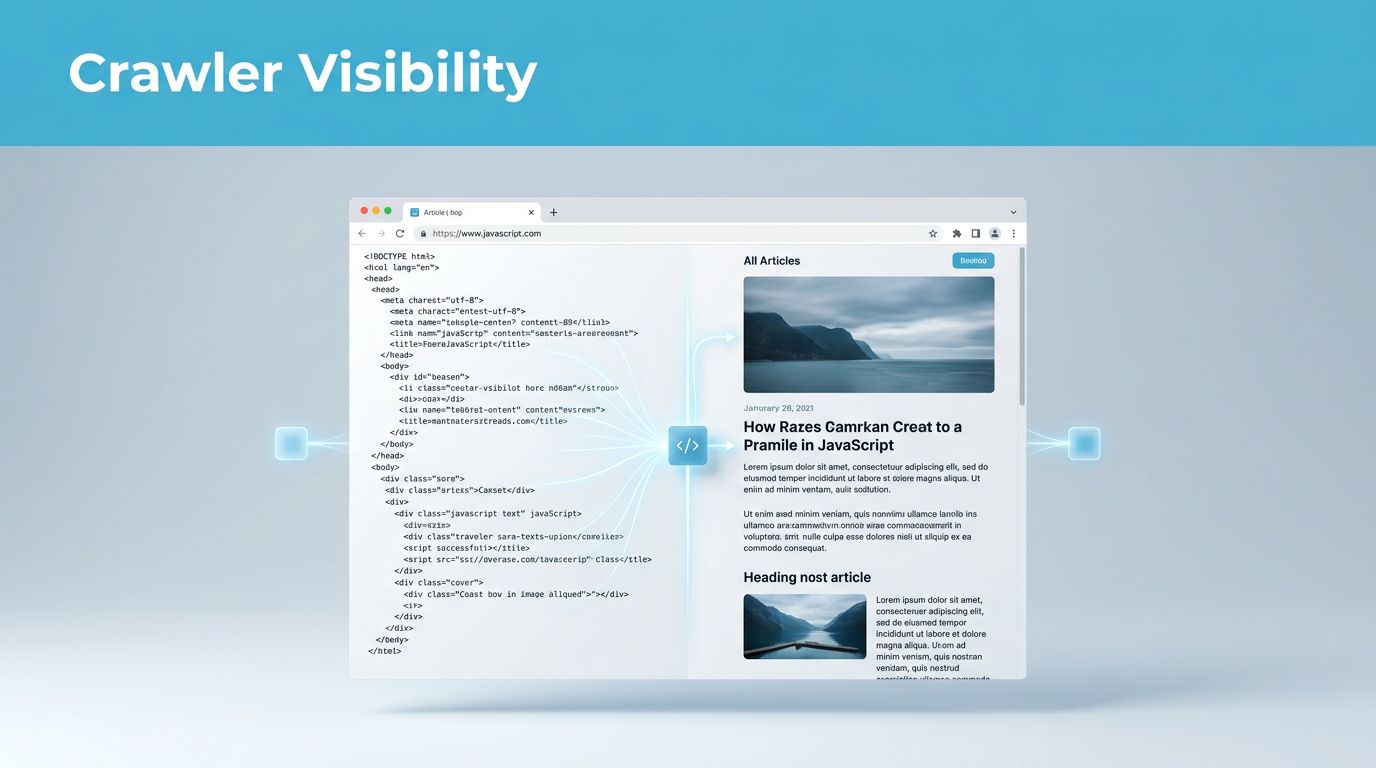
Your page can look complete in Chrome whilst a crawler receives almost no useful text. To improve AI crawler visibility, make essential content available in accessible HTML, then test fetching, rendering and indexing separately.
Crawler capabilities vary, so a successful Googlebot test doesn’t establish what another platform can process. Start with the published response, compare it with the rendered page, and check actual crawler access before rewriting your content.
Separate fetching, rendering and indexing
These processes answer different questions, and confusing them can send your audit in the wrong direction.
Fetching means requesting a URL and receiving a response. A crawler might receive your full article, an empty application shell or a security challenge.
Rendering means executing JavaScript and constructing the page. This can add text, links and metadata that weren’t present in the initial HTML.
Indexing means processing content for inclusion in a search index. Receiving and rendering a page doesn’t guarantee that decision.

Google’s JavaScript SEO documentation describes these three stages. Google uses a headless Chromium renderer, but rendering can be deferred. Blocked pages and blocked JavaScript resources aren’t rendered.
That tells you how Google processes JavaScript. It doesn’t establish identical behaviour for OpenAI or another provider.
Keep this distinction throughout your test: access is necessary, but access alone doesn’t prove content was understood or selected.
Choose pages and content worth testing
Sample the templates that matter commercially
Start with your main service page, a detailed article, a product or pricing page, and one JavaScript-heavy template. Include an important deep URL rather than testing only your homepage.
Use Search Console and conversion data to choose pages that already attract relevant demand. A B2B SEO content audit can help you connect technical priorities with enquiries.
If PPC drives much of your traffic, include public campaign landing pages where they also provide useful service information. You’re checking the published content, not whether the advertising platform approves the page.
Define what a successful response contains
For each URL, record the exact heading, service explanation, pricing terms and supporting links you expect to find.
On a pricing page, for example, check whether billing units and exclusions appear without changing a toggle. On a service page, look for delivery details and relevant proof.
Keep a simple record of the URL, template, test date and expected content. Save your results against that baseline so another person can repeat the whole method.
Inspect the initial HTML response
Capture the document before JavaScript changes it
Open Chrome DevTools, select the Network panel and reload the page. Select the main document request, then inspect its response and headers.
Use a fresh session without an existing login. Save the HTML response and note the status code, final URL and any redirects.
Search for the exact content you recorded earlier. Look for the main answer, not merely the title or navigation.
A 200 response isn’t enough. It can contain a loading message, an error screen or an application shell. A command-line request with curl provides another useful comparison, but it still tests fetching rather than rendering.
Check text, links and directives
Confirm that important copy exists as ordinary HTML text. Text stored inside a JavaScript object isn’t equivalent to a readable page explanation.
Inspect links too. A button with a click handler may work for visitors without exposing a destination through an ordinary href.
Take particular care with JavaScript-injected internal links. If a vendor script fails, those routes can disappear.
Record any robots directives, canonical tags and unexpected destinations. Don’t remove them automatically. Some exclusions are intentional, especially for duplicate pages, private areas and staging environments.
Compare the rendered page with Google’s view
Run a controlled rendering comparison
Load the same URL normally and inspect the resulting DOM in Chrome’s Elements panel. Compare the essential content with your saved document response.
Screaming Frog SEO Spider also lets you compare HTML crawling with JavaScript rendering. Keep the URL sample and relevant settings consistent.
Check for failed API requests, blocked scripts and console errors. If the service explanation arrives only after an API response, record that dependency.
Also inspect mobile output and content behind interactive controls. Don’t assume a crawler will click tabs, accept cookies or scroll through every component.

Use URL Inspection for Google-specific evidence
In Search Console, inspect the URL and run Test live URL. Review the available HTML, screenshot and resource information.
The URL Inspection documentation distinguishes Google’s indexed version from its live test. An older indexed view may not reflect your latest deployment.
Compare both views where available. A successful live test doesn’t guarantee indexing, ranking or inclusion in an AI answer.
Use SEO indexation monitoring to track that separate decision. Your local browser comparison identifies dependencies; Search Console provides Google-specific evidence. Neither reproduces every AI crawler’s behaviour.
Verify AI crawler access independently
Before testing AI crawler visibility, identify which crawler matters and what it does.
OpenAI’s crawler documentation distinguishes OAI-SearchBot, which supports ChatGPT search features, from GPTBot, which crawls content that may support model training. Their controls are independent.
Allowing GPTBot isn’t a prerequisite for allowing OAI-SearchBot. Equally, that documentation doesn’t establish whether either crawler executes your JavaScript or processes a fully rendered DOM.
Review robots.txt, CDN settings and firewall rules for the intended crawler. Keep private information protected by proper authentication rather than relying on crawler instructions.
Then inspect actual requests through AI crawler monitoring. Record the requested URL, timestamp, response status and security action. Where the provider supplies verification guidance, use it rather than trusting a user-agent string alone.
A browser challenge can prevent access even when your application appears healthy to you.
Changing your test client’s user-agent doesn’t reproduce a crawler’s JavaScript capabilities, network identity or indexing process.
A genuine request confirms access at that moment. It doesn’t prove that the crawler read a particular paragraph, retained it or cited it. If rendering capability remains undocumented, record it as unknown.
Interpret the evidence without guessing
Use the findings to classify the problem before you choose a fix.
| Observation | What it supports | What it doesn’t establish |
|---|---|---|
| Main copy appears in initial HTML | A successful fetch can receive it without JavaScript execution | Indexing or citation |
| Copy appears only after rendering | The page depends on JavaScript for that content | Every crawler can process it |
| Search Console shows the expected content | Google can access it in that test | Another provider’s capabilities |
Verified crawler request returns 200 | The URL was fetched successfully | The response contained useful copy |
| Your page appears as an AI citation | The platform selected it for that answer | Consistent future inclusion |
If the initial response contains useful copy but your brand isn’t cited, don’t immediately blame JavaScript. Discovery, relevance and source selection are separate questions.
If the response is an empty shell, you’ve found a dependency worth addressing, even when Chrome displays everything correctly.
Keep technical testing separate from an AI search audit. For answer testing, save the exact prompt, date, UK location, platform and model where available. Repeat important queries under comparable conditions.
A single screenshot records one answer. It doesn’t diagnose the reason your page was selected or omitted.
Fix dependencies and retest after changes
Make essential information available earlier
Consider server-side rendering or static generation for essential page content. You can retain interactive features whilst delivering the core explanation in the initial response.
If you use pre-rendering, make sure it stays current. An accessible pricing page with outdated terms creates a different problem.
Keep the main heading, service details, ordinary links and important terms available without requiring interaction. Structured data should match visible content; it doesn’t replace it or guarantee a citation.
Google describes dynamic rendering as a workaround, rather than its recommended long-term solution. Assess the maintenance cost before adding another delivery path.
Turn the test into a deployment check
After changes, repeat the same response, rendering, directive and access checks. Check canonical consistency too, particularly where JavaScript filters create duplicate URLs.
Build this into technical SEO automation and retain dated reports. Changes to caching, consent tools or templates can reintroduce failures.
Check that landing pages used for Google Ads and Facebook Ads still show the same current offer and terms. Buyers shouldn’t receive conflicting information across your marketing.
Track AI search visibility separately from crawler requests and qualified leads. Better access removes an avoidable obstacle, but your reporting still needs to show whether the traffic has commercial value.
Start with the response your crawler receives
Reliable AI crawler visibility starts with knowing what your server delivers and what JavaScript adds. Keep fetching, rendering and indexing separate so each finding leads to the right action.
Your page looking complete in Chrome is only one part of that evidence. Test your highest-value templates first, then retain the results for your next deployment.
If you need help prioritising the work, use Flow20’s SEO support to investigate technical access and connect the findings with your wider Digital marketing performance.